
















When someone visits your website for the first time, they don’t know you yet. They have never worked with you, bought from you, or experienced what you offer. The fastest way to change that is to let other people speak for you.
A testimonials section does exactly that. It shows real words from real people who have already worked with you or bought from you. It tells the visitor that others have taken the same step they are considering, and it turned out well. That kind of social proof builds trust faster than any headline or product description can.
The challenge is adding it to your website without making things more complicated. Many guides will tell you to install a separate testimonials plugin, learn the settings, and manage it as another tool. But if you are already using the WordPress block editor, you may not need an extra plugin for something that is basically quotes, names, and a clean layout.
This guide shows you two ways to add a testimonials section in WordPress without installing another plugin. The first is building it yourself using blocks. The second is importing a ready-made testimonials template and customizing it to fit your site.
Why Testimonials Section Matter More Than You Think
Most visitors quickly scan a page before deciding whether to stay or leave. They look for signs that show if your website, product, or service is worth their time. A well-placed testimonials section is one of the strongest trust signals you can give them.
It works because the message is not coming from you. It comes from someone who was once in the same position as the visitor, had similar doubts, and decided to move forward. That makes testimonials far more convincing than self-promotion.
For a portfolio website, testimonials help visitors understand what it is like to work with you. For a small business, they show that real customers were happy with their purchase or experience. For a coaching or consulting website, they help prove that your promised results are possible.
A testimonials section doesn’t need to be long or complicated. Even two or three short and honest reviews, placed in the right area of your page, can make a noticeable difference in building trust and increasing conversions.
How to Add a Testimonials Section Using the Gutenverse Template Library
Gutenverse comes with a template library that includes ready-made testimonials sections that you can import in just one click. Instead of building everything from zero, you can start with a professionally designed layout and simply adjust the content, colors, and typography to match your site.
This is especially helpful if you want something that looks polished without spending too much time designing, or if you are not sure where to start. Here is how to do it:
Step 1: Make Sure Gutenverse Is Installed
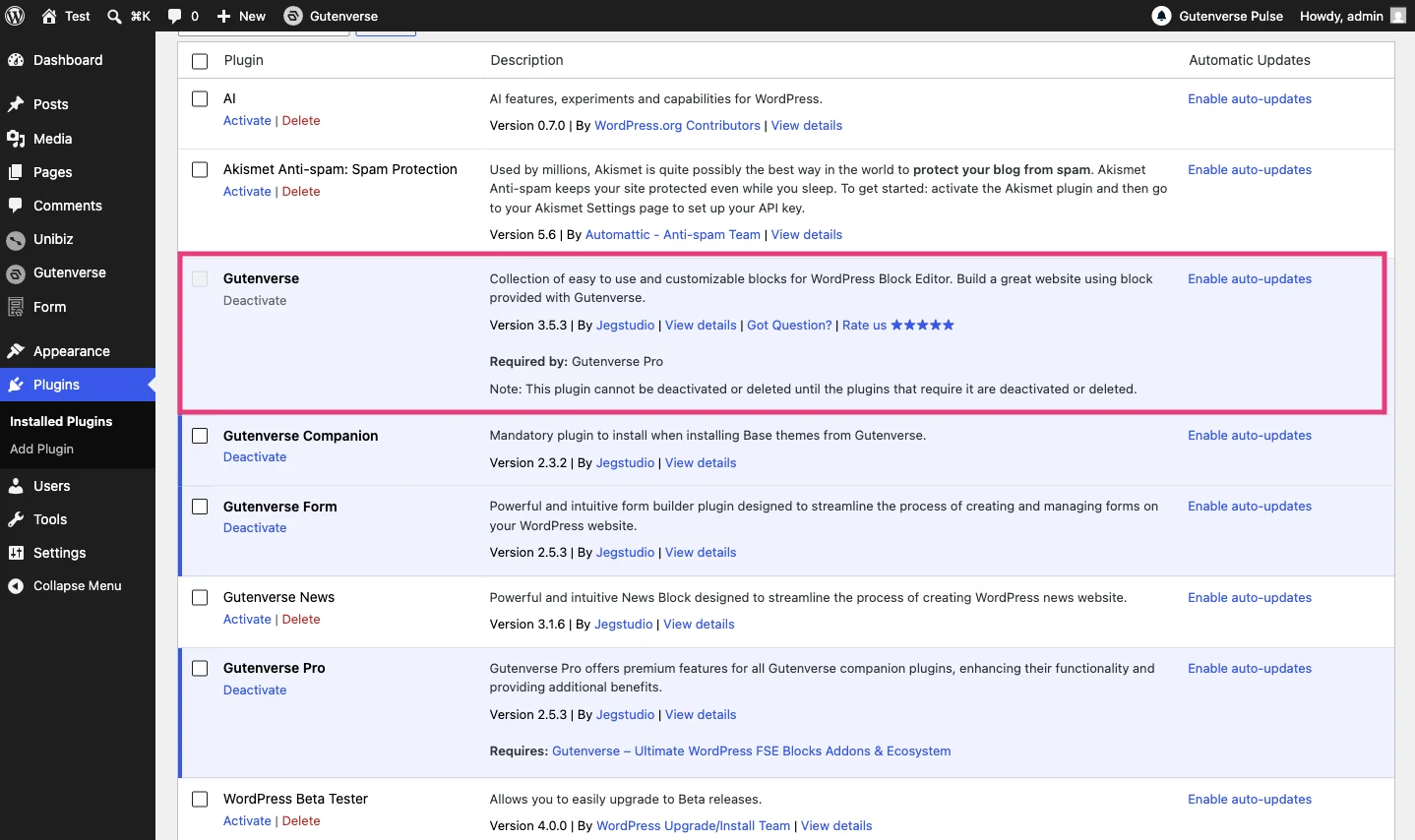
You will need the Gutenverse plugin installed and activated on your site. The free version gives you access to the template library.
Step 2: Open the Template Library
Go to the page where you want to add the testimonials section. Open it in the block editor, then click the Gutenverse Library button in the editor toolbar. A popup will appear showing the template library.
Step 3: Browse the Sections Tab
Inside the template library, click the Sections tab. This is where you will find individual sections rather than full page layouts. On the left sidebar, you can filter by category. Look for the testimonials category to narrow down your options.
Browse through the available testimonials sections. Each one shows a preview so you can see exactly how it looks before importing.
Step 4: Import the Section
When you find a design you like, click Import. The section loads into your page in a few seconds, fully structured and styled, right where your cursor is in the editor.
Step 5: Replace the Content
Now replace the sample content with your real testimonials.
Click each quote block and add feedback from your customers or clients. Update the names, job titles, and photos if needed.
Because the section uses standard WordPress blocks, editing it feels the same as editing any other content on your site. Just click, change, and save.
Step 6: Customize the Style
The imported section will usually follow your website’s global styles, so fonts and colors should already well-matched.
If you want to make more changes, such as adjusting spacing, changing background colors, or refining typography, you can do it from the block settings panel on the right side of the editor. You don’t need to touch any code. Everything is done inside the editor.
Tips for Writing Testimonials That Actually Work
The design of your testimonials section is important, but the words inside it matter even more. A beautiful layout with weak testimonials will not build much trust or help conversions. Here are some tips to keep in mind:
Final Thoughts
A testimonials section is one of those small things that can make your website feel much more trustworthy. It gives new visitors proof that other people have already chosen you and had a good experience.
The good news is, it does not have to take much time. You can build the section yourself using blocks, or speed things up with the Gutenverse template library and customize it in just a few minutes.
Don’t worry about making it perfect straight away. Start with a few honest testimonials, keep the layout clean, and improve it later as you collect more feedback.
That’s it for this one. Hopefully this gave you a better idea of how easy it can be to add a testimonials section to your site. Give it a try, use what works for your website, and see how a few real customer words can change the way people see your business. See you in the next post!